Connect Your Nook With Wi-Fi Hotspot With Simple Steps
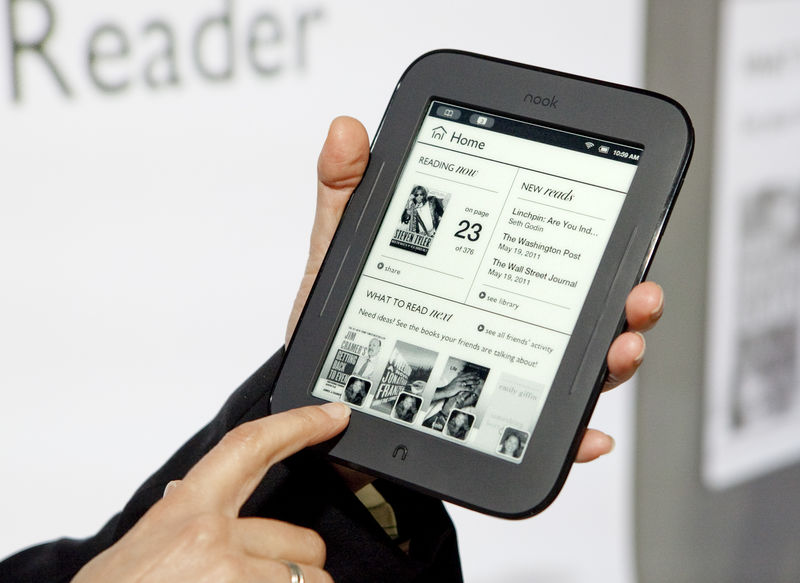
Unleash the steps to use internet with your nook
tablet. With simple steps, your nook tablet can be connected to Wi-Fi hotspot.
You have been witnessing
the traditional era of finding your favorite edition of the book on bookstores.
But, with digitization, things are changed from the traditional phase of reading
books to the digital phase of e-reading. And you guys are pretty aware that
there are now, plenty of e-reading device in the market. And in that plenty
choices, the one with notable features and services is the Nook tablets of
Barnes and Nobles, which has already made its mark among potential competitors
like Apple, Kindle, Samsung and Lenovo etc. With fine specs,
astonishing features and better services, the tablet sets the vision of growing
and furnishing the desired service in a conventional way. With quality services
and features, there are many unsolved issues, which can be sort out by Www Nook com Support for any technical assistance from
company’s experts. And to sort out the minor issues, simply tap Nook customer service
to fix the bugs. Besides reading your favorite book, did you ever used the
Wi-Fi hotspot of your nook? Well, if not, then this blog post will clear the
process to connect your nook with the Wi-Fi hotspot. When you are travelling
somewhere, far from your home, for instance hotels, restaurants, public
libraries and any city etc. You are always keen to access exclusive editions of
your favorite books to enjoy your journey without any interruption. And for
accessing the exclusive edition of your book, you need proper Wi-Fi hotspot
connection, which will enroot you to access different books from your nook
library.
To find the way to unleash this benefit,
just follow he required steps-
- Before heading towards the main section, just scroll to the right side of the main menu to tap over the “Wi-Fi" button to get started. This is the first mandatory step for all the nook users out there.
- After reaching to the “Wi-Fi" section, you need to select the “Wi-Fi Hotspot". This is the necessary step to make sure the availability of different Wi-Fi available to get connected. If you forget to select the Hotspot section, then you will not be able to see the available connections around your nook tablet.
- The selection of Wi-Fi hotspot of your nook will provide the available connections around your device. Now, simply choose the Wi-Fi hotspot you want to get connected. The hotspot that you will select, might be with the high signal strength. But, the hotspot can also be the only one you are authorized to get connected. Well, these are the possible reasons you can relate to.
- Selecting the proper Wi-Fi connection will lead you to the next step of the process. You need to enter a password, if the tablet ask for it. The password that you will enter, it will be the password for your Wi-Fi account, not of your nook. Head to your internet service provider to get the password. After getting the password, you need to enter the code and tap the “Submit" button. Enter the correct password, as the wrong one will restrict you to move further in the process.
- If you are not able to get the Wi-Fi source you wanted, then check out for “other Hotspots" option. Now enter the security type and SSID or service set identifier to fix the Wi-Fi issues. The issues which you might be facing with your Wi-Fi, could be sort out with a proper solution. You can also get reference with Nook com support to ensure the chances of getting a high speed Wi-Fi hotspot anywhere.
Important
tip and warning- To save and extend your battery life, you can turn off the
Wi-Fi, if there is no download in progress. But, if you want to use the online
features, then you have to turn it on.